QUICK START
Your ANKOR has arrived.
Ten minutes, and ANKOR is on the wall with your apps gone quiet. One step at a time.
BEFORE YOU START
ANKOR Original ships with two steel plates on its back. Each plate is held by a magnet with a paper strip in between, and carries an adhesive film on its outer face. Two pieces of paper, and they come off at different moments. Nothing comes off yet. On a magnetic surface, a fridge, a metal locker, a magnetic board, pull the paper strips, lift the plates off, place ANKOR directly. No adhesive, no mounting. On a wall, a door, a door frame, anything non-magnetic: leave the plates on and follow step 02.
Where ANKOR goes
A spot you choose on purpose. Not the one you already sit in.
Bedroom
Beside the bed. The last thing you touch is a book.
Hallway
By the door, next to the keys. On the wall before you leave, not in your pocket.
Kitchen
Near the counter, not on it. Coffee first, phone after.
Living room
Away from the sofa, away from the coffee table. In the room, not between you.
At eye level or just below. The surface has to be clean, dry and smooth. No woodchip wallpaper, no fresh paint.
01
UNBOX
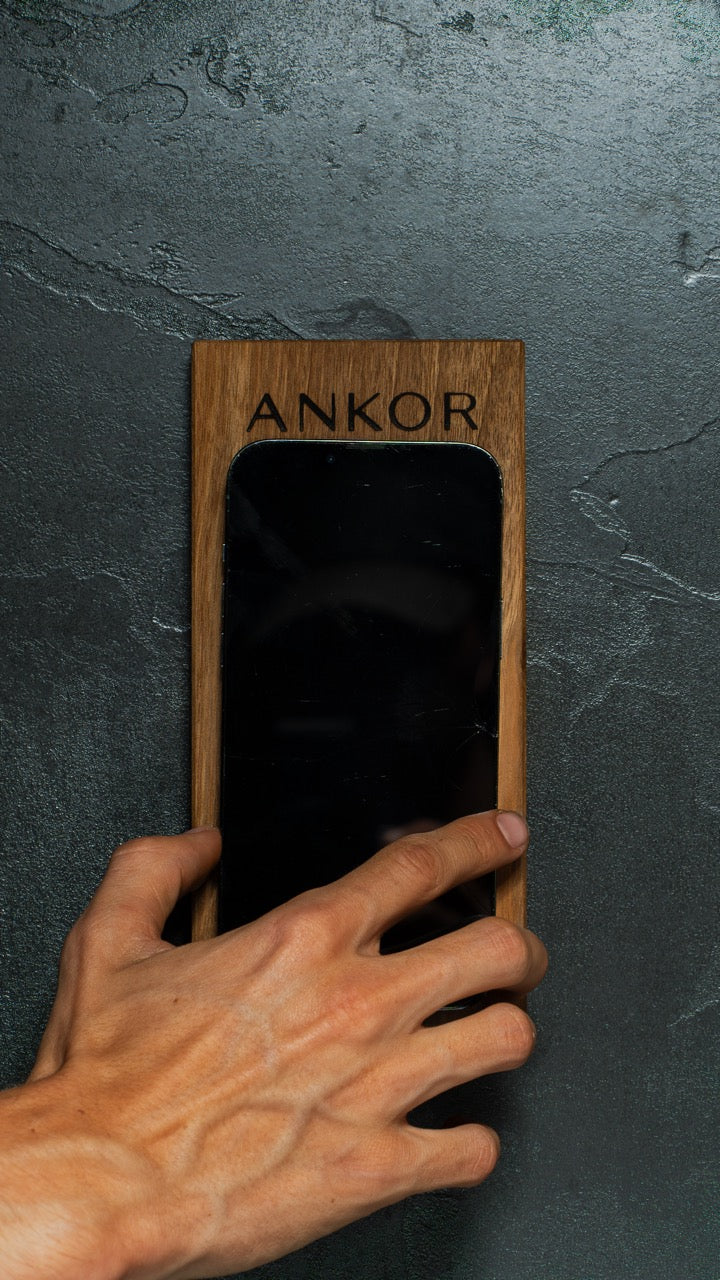
Here is your ANKOR. Open the box. Two steel plates sit on the back, each on a magnet with a paper strip behind it. Leave the strips where they are.
02
MOUNT
Find your spot. Magnetic surface: pull the paper strips, lift the plates off, place ANKOR. Done. Wall: peel the adhesive film from both plates. Press ANKOR against the surface and hold for ten seconds. Lift ANKOR off, the plates stay. Now pull the paper strips out. Put ANKOR back on: ANKOR clicks into place.
WHAT SURFACES WORK?
Flat and clean is what matters. Painted walls, doors, door frames and concrete all bond well. Avoid rough or textured surfaces, woodchip wallpaper and fresh paint, because the adhesive needs full contact. More locations? ANKOR is magnetic. Order extra plates and set up a spot at home, at the office, wherever you need it.
03
GET THE APP
The dock gives your phone a place. The app makes the apps you chose go quiet. Allow Screen Time access on first launch, because without it ANKOR cannot mute anything. Then hold your phone to the ring once inside the app. That scan unlocks the app on this phone, for good and at no cost. After that you choose which apps go quiet during a session.
04
SET UP THE SHORTCUT
For ANKOR to react the moment you dock, you need one NFC automation in the Shortcuts app. Set it up once and every scan works instantly after that. The same guide is in the app under Settings, Instant Scan.
At step 5, choose Run Immediately, not Run After Confirmation. Otherwise you have to tap a prompt every time you dock.
1. Open Automation, then New Automation. 2. Scroll down, tap NFC. 3. Tap Scan, hold ANKOR to your iPhone. 4. Enter the name ANKOR, tap OK. 5. Choose Run Immediately, then Next. 6. Tap Ankor in the list. 7. Tap ANKOR, done.

1. Open Automation, then New Automation

2. Scroll down, tap NFC

3. Tap Scan, hold ANKOR to your iPhone

4. Enter the name ANKOR, tap OK

5. Choose Run Immediately, then Next
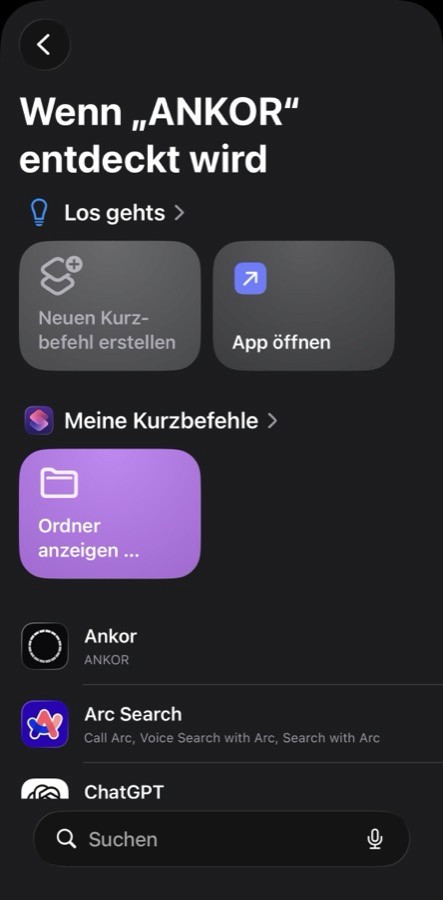
6. Tap Ankor in the list

7. Tap ANKOR, done
05
FIRST SCAN
The NFC reader sits at the very top of your iPhone. Hold the top edge to the centre of the ring, at its widest point. The session starts. Then hang your phone on ANKOR.
GETTING THE SCAN RIGHT
To end the session, scan again. Lifting the phone off ends nothing: everything stays blocked until the next scan. Calls always come through. If a notification appears when you scan, the chip is not set up yet. In the app go to Settings, then Instant Scan, then Set up chip. After that a scan runs straight through, with nothing to tap. With Airplane Mode on, the iPhone does not read the chip. Switch it off, then scan.
TO EXIT
Wake your screen and hold your phone to the ring again. You are out. If nothing happens, open the app and tap the ring to scan from there.
06
EMERGENCY EXIT
For when you actually need out. For something quick, every session has one three-minute pause, at most one an hour. For a real emergency, tap Emergency exit in the app, wait ten seconds, and the session ends. One emergency exit is free. After that you take Member and have as many as you need. On iPhone you can also buy a single emergency exit for CHF 4.95. Your ANKOR on the wall always ends a session at no cost, and calls always come through.
GET MORE FROM ANKOR
A few things worth knowing.
01
Place ANKOR where the habit lives. The urge to reach for your phone is strongest at specific moments: walking in the door, sitting at your desk, getting into bed. Put ANKOR exactly there. The location does half the work.
02
Start with one context. Pick the one situation where you most want to be present. Get comfortable there first, then expand.
03
The ritual is the point. The physical act of placing your phone is a decision, not a restriction. Over time that gesture becomes an anchor point in your day.
04
Leave ANKOR visible. ANKOR works as a reminder even when not in use. If you can see it from where you sit, you think about the choice more often.
05
Profiles. Set up named profiles in the app for different parts of your day: work, evening, weekend. Three are free with your ANKOR. With Member a profile can carry a schedule, so your evening starts on its own at the time you set.
THE APP
Download ANKOR for iPhone.
Free with your ANKOR. Required for setup and blocking.
The Android app is on Google Play. Search for ANKOR there, it needs Android 7.0 or later.
Questions
Does ANKOR work without the app?
No. The dock starts a session and the app is what runs it. They are two halves of one product.
How do I end a session?
Hold the phone to the dock a second time. Lifting the phone off the dock does not end the session, and everything stays blocked until the next scan. Calls always come through.
Which iPhone do I need?
iOS 17.0 or later, or Android 7.0 or later.
Does the app cost anything?
No. With your ANKOR the app is free for good. ANKOR Member is optional and adds schedules, more profiles and more.
What does the app collect?
Very little. Your sessions, your profiles and your phone time stay on your phone. Only Friends and ANKOR Family store anything with us, and only if you switch them on. The details are in the app privacy policy on this site.
Does ANKOR need Wi-Fi?
No. A session starts over NFC, a direct exchange between the dock and the phone. Your phone still needs its own signal for whatever you use during the day, but the dock connects to nothing.
Can I still be reached during a session?
Yes. You choose which apps a session covers, so calls and anything you leave off the list keep working.
If something does not work, write to us.
Not every question is answered on this site. A person reads every message.